How to Identify and Use Ethernet Cable Color Codes Effectively
How to Identify and Use Ethernet Cable Color Codes Effectively
You use ethernet cables to get steady internet and network at home and work. The ethernet cable color code lets you match wires the right way. This stops connection problems from happening. T568B is used most in business buildings in the United States. T568A is seen more in homes and government offices in other countries.
Tip: Using the right color code makes your DIY wiring project simple and helps you not make mistakes.
Key Takeaways
Pick the right ethernet cable color code for strong connections. This stops network problems and helps data move better.
Use the T568A standard for homes and government buildings. Use the T568B standard for most offices. Keeping things the same stops confusion.
Test your cables after you put them in. This finds problems early and keeps your network working well.
Put labels on both ends of each cable. This makes fixing problems and upgrades easier. Good notes save time and lower mistakes.
Do not put ethernet cables near electrical wires. This stops signal problems. Use shielded cables in loud places for better results.
Ethernet Cable Color Code Basics
Why Color Codes Matter
You may ask why ethernet wire colors are needed. Every wire inside an ethernet cable does a special job. The ethernet cable color code helps you put each wire in the right spot on the RJ45 connector. This makes sure data moves smoothly and works well. If you mix up the wires, you might get electrical problems or your network might stop working.
Using the right color code helps you make fewer mistakes when setting up cables. It also helps your devices connect without trouble. Good data transmission needs a strong and clear signal. Picking the correct ethernet wire colors helps you avoid problems like slow internet or lost connections.
Groups like the Telecommunications Industry Association (TIA), the Institute of Electrical and Electronics Engineers (IEEE), and the Department of Defense (DoD) make the rules for ethernet cable color codes. These groups want everyone to wire cables the same way.
Standard
Description
T568A
Shows the color order for wiring in Ethernet cables.
T568B
Another way to order colors for wiring Ethernet cables.
Common Ethernet Cable Colors
Most ethernet cables have eight different wire colors inside. These colors help you know where each wire should go. The most common ethernet cable colors are:
White with green stripes
Green
White with orange stripes
Orange
White with blue stripes
Blue
White with brown stripes
Brown
Each wire color fits in a certain spot in the ethernet cable color code. You need to match these colors to the right pins for good data flow. Using the correct ethernet wire colors makes your network safer and more steady. It also helps you fix problems later because you can see which wire goes where.
Ethernet Wire Colors and Standards
568A Color Code
The The T568A color code is used in many homes. You also see it in government offices. This standard helps you connect ethernet cables. It makes data transmission strong. Each wire matches a pin on the RJ45 connector. You must follow the t568a standard. This helps your network work well.
Here is a table that shows the t568a pin assignments:
Pin
Wire Color
1
Green/White
2
Green
3
Orange/White
4
Blue
5
Blue/White
6
Orange
7
Brown/White
8
Brown
Using the right ethernet cable color code helps your devices work. It lets them send and get data without errors. The t568a color code gives you a clear guide. You match wires to pins easily. This makes rj45 color code wiring simple.
T568B Color Code
The t568b color code is found in most offices. You see it in business buildings in the United States. This standard also helps data transmission stay strong. The wire colors and pin spots are not the same as t568a. But you still use eight wires and eight pins.
Here is how the t568b standard arranges the wires:
Pin
Wire Color
1
Orange/White
2
Orange
3
Green/White
4
Blue
5
Blue/White
6
Green
7
Brown/White
8
Brown
You need to use the t568b standard for office cables. Using the right rj45 color code helps you avoid mistakes. It keeps your network stable.
Differences Between T568A and T568B
You might wonder how t568a and t568b are different. Both use the same wire colors and pins. The order of the wires is not the same. This changes how you set up your rj45 color code.
Here is a table that shows the differences between t568a and t568b:
Standard
Pin 1
Pin 2
Pin 3
Pin 4
Pin 5
Pin 6
Pin 7
Pin 8
T568A
White/Green
Green
White/Orange
Blue
White/Blue
Orange
White/Brown
Brown
T568B
White/Orange
Orange
White/Green
Blue
White/Blue
Green
White/Brown
Brown
The main change is in the first three pins. The t568a color code starts with green and white. The t568b color code starts with orange and white. This matters when you connect two devices. It also matters when you set up a network for data transmission.
Choosing the Right Standard
You need to pick the right standard for your project. The t568a standard is best for homes and government offices. The t568b standard is used in most offices in the United States. Both standards help data transmission stay strong. You should match the standard in your building. This makes fixing problems easier.
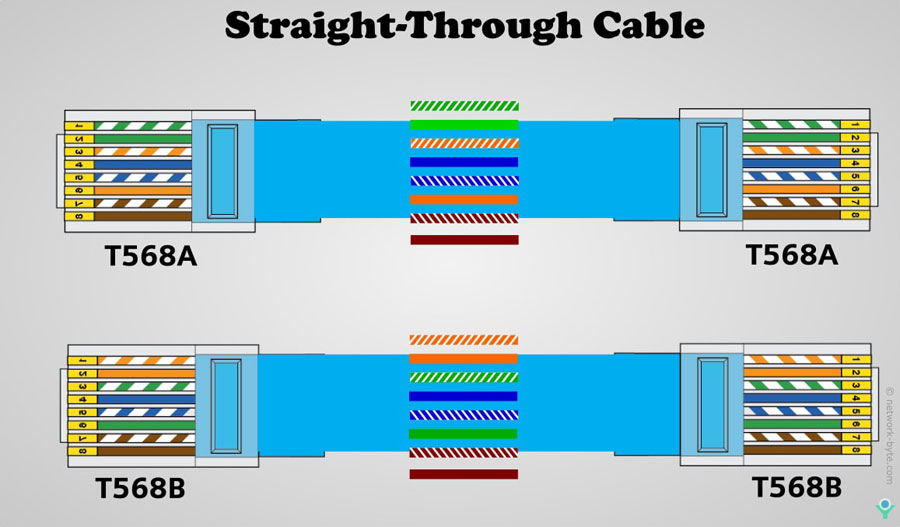
Tip: Always use the same ethernet cable color code on both ends for straight-through cables. If you mix t568a and t568b, you make a crossover cable. You only need a crossover cable to connect two computers directly.
International standards for ethernet cable color codes can be different. The TIA gives advice, but you do not have to follow it. Some countries use other color codes. Some colors have special meanings. For example, the Department of Defense uses colors for data levels. You should check local rules before you start wiring. Groups update standards to keep up with new technology. The TIA-606-B standard added fiber integration in 2017. It also gave nine main colors for cable jobs. In 2025, new rules will let you customize more. Networks will still work together.
Update Year
Standard
Description
2017
TIA-606-B
Changed to include fiber and nine main colors for cable jobs.
2025
TIA-606-B
New rules for more options and keeping networks working together.
You help your network work well when you follow the right rj45 color code and ethernet cable color code. This makes data transmission fast and reliable.
RJ45 Ethernet Wiring Steps
Tools and Preparation
You need the right tools before you start rj45 ethernet wiring. Each tool helps you make strong and reliable cable wiring. Here is what you should have:
RJ45 connectors: These let you finish the ends of ethernet cables.
Ethernet cable: Use Cat5e or Cat6 for most home and office jobs.
Crimping tool: This tool can strip, cut, and crimp wires.
Wire cutter: You use this to trim wires to the right length.
Optional load bar: This helps you line up wires inside the connector.
Tip: Gather all your tools first. This saves time and helps you avoid mistakes.
To get ready for cable wiring, follow these steps:
Collect your cable stripper, crimping tool, and RJ45 connector kit.
Lay out the wire pairs. Gently fold out each pair. Cut off any exposed core. Untwist each pair but keep the twist close to the end.
Arranging Ethernet Wire Colors
You must arrange the wires in the correct network cable color order. This step is key for good data flow and strong connections. Each wire has a color that matches a spot in the rj45 color code. You need to untwist the pairs and line them up flat. Make sure the wires are straight and in the right color-coded wiring sequences.
For T568A, the order is:
Green/White
Green
Orange/White
Blue
Blue/White
Orange
Brown/White
Brown
For T568B, the order is:
Orange/White
Orange
Green/White
Blue
Blue/White
Green
Brown/White
Brown
Note: Always double-check the wire order before you move to the next step. This helps you avoid wiring mistakes.
RJ45 Color Code Pinout for T568A
The rj45 color code for T568A uses a special order for each wire. This order helps your devices talk to each other without errors. Here is the pinout for T568A:
Pin Number
Wire Color
1
Green/White
2
Green
3
Orange/White
4
Blue
5
Blue/White
6
Orange
7
Brown/White
8
Brown
You must follow this patch cable color code for home networks. This keeps your connections safe and strong.
RJ45 Color Code Pinout for T568B
The rj45 color code for T568B is different from T568A. You see this order in most offices. Here is the pinout for T568B:
Pin Number
Wire Color
1
Orange/White
2
Orange
3
Green/White
4
Blue
5
Blue/White
6
Green
7
Brown/White
8
Brown
You should use this color code for business networks. It helps you match the right wire to the right pin.
Crimping and Testing
You need to follow each step for crimping and testing to make sure your cable wiring works well. Here is how you do it:
Measure and cut the cable to the length you need. Use the wire cutter for a clean cut.
Strip off 1 to 2 inches of the outer jacket with the cable stripper. Do not hurt the wires inside.
Untwist the wire pairs. Arrange them in the right order for T568A or T568B.
Straighten the wires. Trim them so they are even and about half an inch from the jacket.
Insert the wires into the RJ45 connector. Hold the clip side down. Push each wire into its slot. Make sure the order matches the rj45 color code.
Check the wire order by looking at the front of the connector. The colors should be the same on both sides.
Put the connector into the crimping tool. Squeeze the handles tight. This locks the wires in place and finishes the cable wiring.
Test the cable with a cable tester. Plug both ends into the tester. Turn it on and wait for the results. Check that all pairs are wired right and that there are no open circuits.
For extra testing, connect the cable to your network devices. Try file transfers or check speed with network tools.
Alert: Always test your cables before you use them. This helps you find problems early and keeps your network safe.
You make strong connections when you follow each step. You avoid problems like slow speeds or lost signals. Good rj45 ethernet wiring depends on careful work and checking each wire.
Crossover and Straight-Through Cables
When to Use Crossover Cables
You use a crossover cable to connect two devices that are the same. For example, you can link two computers with it. You can also connect two switches or two routers. Crossover cables switch the transmit and receive wires. This lets each device send and get data without needing another device in the middle.
Here are some times you need a crossover cable:
Tip: Pick a crossover cable if you do not have a hub or switch between your devices.
Wiring One End T568A, One End T568B
To make a crossover cable, wire one end as T568A and the other end as T568B. This changes the pin setup at each end. The transmit pins on one side match the receive pins on the other side. This lets two similar devices talk to each other right away.
When you wire one end as T568A and the other as T568B, the cable crosses the data pairs. This is needed when you connect devices that use different wiring standards. The crossover cable helps them send and get signals the right way.
Applications for Each Cable Type
You use straight-through and crossover cables for different jobs in your network. The way you wire and use them decides which cable you need. Here is a table that shows the main differences:
Feature
Straight-Through Cable
Crossover Cable
Wiring Configuration
Same wiring on both ends
Transmit and receive pairs crossed over
Usage
Connects different types of devices
Connects similar types of devices
Example Devices
Computer to router, router to modem
Computer to computer, switch to switch
Communication
Needs intermediary devices like switches
Direct device-to-device communication
You use a straight-through cable to connect a computer to a router or a switch. You use a crossover cable to connect two computers or two switches. The table below shows typical uses:
Cable Type
Typical Application
Crossover Cable
Connects similar devices directly (computer to computer, switch to switch)
Straight-Through Cable
Connects different types of devices (computer to switch)
Note: Always check your devices before you pick a cable. Using the right cable helps your network work better and faster.
Troubleshooting Ethernet Cable Issues
Identifying Wiring Mistakes
Sometimes you have problems when setting up ethernet cables. Mistakes happen if you do not use wiring diagrams. Rushing can also cause errors. You need to find these mistakes early. This keeps your network working well. Here are some common wiring mistakes to watch for:
Bad cable labeling makes it hard to know which wire is which. This can confuse you when you install or fix cables.
If you run cables next to electrical wires, you get interference. This weakens your signal and causes problems.
Using different cables for data and voice costs more money. It also makes cable management harder.
Not enough space for removing or upgrading cables is dangerous. It makes future changes tough.
If you skip cable testing, wires may not work right. This can cause slow speeds or dropped connections.
Tip: Always check your wires before finishing the job. Planning and organizing help you avoid most mistakes.
Quick Fixes and Testing Methods
You can fix many ethernet cable problems fast if you know what to do. Follow these steps to find and fix wiring errors:
Look at the wires to see if they are damaged. Check for bent pins or broken insulation.
Test the cable by swapping it with a good one. If the problem goes away, the wire was bad.
Use a cable tester to check if each wire connects right. The tester shows if the pin order matches the standard.
Crimping problems happen if wires are not pressed in the RJ45 connector right. Re-crimp the connector if you see issues.
You should use different testing methods to make sure your cables work well. The table below shows some tools and ways to test:
Testing Method
Description
Basic Ethernet Port Tester
Checks wire connections with LEDs. Good for simple jobs.
Advanced Ethernet Port Tester
Tests complex setups and real network performance.
PoE Load Testing
Verifies power delivery for devices like cameras and phones.
Time-Domain Reflectometry (TDR)
Finds the exact spot of faults in the wire.
Link Speed Validation
Confirms your network supports fast speeds like gigabit or 10G.
VLAN Detection
Detects VLANs and checks network settings.
Reporting
Creates reports for quality checks and professional installs.
Alert: Always test every wire after you install it. Good testing saves time and keeps your network strong.
Tips for Consistent Ethernet Wiring
Avoiding Common Errors
You can stop many network problems by watching for mistakes. Small mistakes can cause big trouble later. The table below lists errors you should avoid and tells why they matter:
Common Error
Explanation
Improper Installation Practices
Bad ways to install cables can cause problems. Use Velcro straps, not zip ties.
Physical Damage
Pinched or bent cables can break your network. Check and change damaged cables.
Signal Interference
Wires close to electrical lines can mess up signals. Use shielded cables and keep them away from power lines.
Improper Termination
Wrong crimping or wiring can make cables fail. Fix and test cables again.
Using the Wrong Cable Type
Using the wrong cable can slow your network. Pick cables that fit your space and needs.
Excessive Cable Length
Cables longer than 100 meters can weaken signals. Use switches or repeaters to go farther.
Tip: Always look for cable damage and keep cables away from power lines.
Best Practices for Reliable Connections
You can make your network strong by following easy rules. These tips help you avoid trouble and keep your network fast:
Use shielded cables where there is lots of electrical noise.
Bundle cables neatly with Velcro straps. This keeps things tidy and helps air move.
Test every connection before you finish setting up.
🛠️ Testing before you finish helps you find mistakes early and saves time.
Labeling and Documentation
Clear labels make your network easier to use. You should label each cable at both ends. Write down where each cable goes and what it does. This helps you fix problems faster and makes upgrades easy. Good records mean you spend less time looking for the right cable.
Some good things about labeling and keeping records are:
Note: Good labels and records help your network work well for a long time.
You make your network work well by using the right ethernet cable color code and wiring standards. The correct RJ45 color code helps keep your connections strong. It also lowers problems like interference or wires in the wrong place.
Clear color codes help you avoid confusion. They make fixing problems faster.
Good wiring helps your devices send and get data without trouble.
If you use a detailed guide, you can set up your network the way you want. This saves you time and money later.
FAQ
What happens if you mix up the Ethernet wire colors?
If you mix up the wire colors, your network may not work. Devices can lose connection or send data slowly. Always follow the color code to keep your network strong.
Can you use T568A and T568B standards in the same network?
You can use both standards in one network, but you should keep each cable consistent. Mixing standards on the same cable creates a crossover cable. Use straight-through cables for most devices.
How do you test if your Ethernet cable works?
You can use a cable tester. Plug both ends of the cable into the tester. The lights show if each wire connects right. You can also check by connecting devices and seeing if they talk to each other.
Why do Ethernet cables have twisted pairs?
Twisted pairs help stop electrical noise. They keep your data safe from interference. You get faster and more reliable connections with twisted pairs.
What is the maximum length for a standard Ethernet cable?
The maximum length for a standard Ethernet cable is 100 meters (about 328 feet). Longer cables can weaken the signal. Use switches or repeaters for longer runs.