If you want fiber optic internet at home, you need some equipment. You need fiber optic cables, an Optical Network Terminal (ONT), a router, Ethernet cables, a clamshell, a residential gateway, a Network Interface Unit (NIU), and sometimes extra accessories. Each part does something important. The fiber optic cable brings internet to your house. The clamshell protects where cables meet. The ONT changes the light signal for your devices. The residential gateway and router help you use Wi-Fi everywhere. In June 2023, about 55.6% of U.S. homes could get fiber optic internet.
Key Takeaways
Fiber optic internet needs special equipment like fiber optic cables, an Optical Network Terminal (ONT), and a router to work well. The ONT changes light signals from fiber cables into data your devices can use. This is important for a fast internet connection. Using good Ethernet cables, like Cat6 or Cat7, helps keep connections strong and fast for things like computers and gaming consoles. Putting your router in the middle of your home helps Wi-Fi reach more places and cuts down on dead zones. Check and take care of your equipment often, including the clamshell and cables, to stop damage and keep your internet working well.
Fiber Optic Internet Equipment
Essential Components
You need some main equipment for fiber optic internet. Each part helps your internet stay fast and strong. Here is a simple table that shows what you need:
Component
Function
Fiber Optic Cables
Carry light signals to bring fast internet to your home or business.
Optical Network Terminal (ONT)
Changes the light signals from the fiber optic cables into electronic data for your devices.
Router
Lets all your devices use the internet, with wires or WiFi.
Ethernet Cables
Connect your router to computers, game consoles, or smart TVs for steady, quick speeds.
Clamshell
Protects where the fiber cables come into your house from weather and damage.
Residential Gateway
Works as both a modem and router, handling your home network and internet access.
Tip: For the best results, pick equipment from brands you trust. Make sure it is made for fiber optic internet, not just regular broadband.
How They Work Together
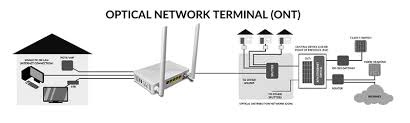
Here is how these parts connect and help your internet at home or work:
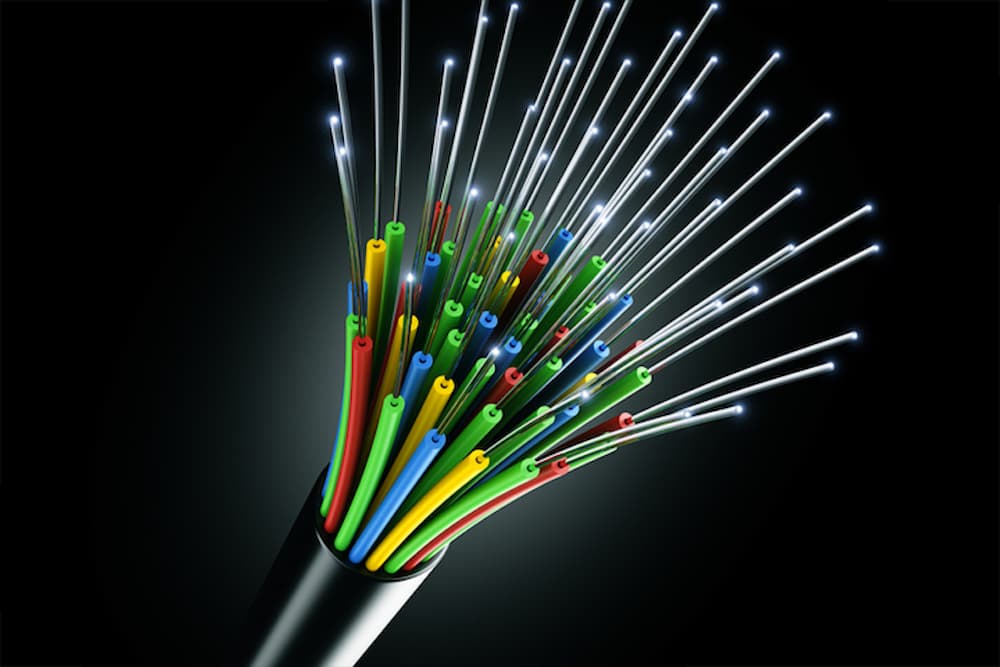
Fiber optic cables go from the street or pole to your house. They bring the internet as flashes of light.
The ONT is inside your house, close to where the cable comes in. It turns the light into electronic data.
Your router plugs into the ONT. It sends the internet to your devices with WiFi or Ethernet cables.
Ethernet cables connect your router to things like computers or game consoles for a steady connection.
The clamshell keeps the fiber cable safe where it enters your house. It protects from rain, dirt, and pets.
The residential gateway helps your network work well. Sometimes, the router and gateway are one device.
The NIU is a checkpoint between your home and the internet provider. It can test the line and add extra safety.
Optional accessories like WiFi extenders help the signal reach every room. Surge protectors keep your gear safe from power surges.
Here is why each part is important:
Fiber optic cables give you fast, clear internet. You get a strong signal and less lag or buffering.
The ONT and NIU work together to keep your internet steady and safe.
Routers and gateways make sure every device gets good speed.
Good cable care and protection stop damage and keep your internet working well.
Note: Fiber optic internet is better than copper cables. You get faster speeds, less signal loss, and fewer problems with interference. If you want good internet for gaming, streaming, or working from home, this setup is best.
Optical Network Terminal (ONT)
What Is an ONT
You might wonder what an ONT does in your fiber optic internet setup. The ONT, or Optical Network Terminal, sits inside your home, usually near where the fiber cable enters. This device acts like a translator. It takes the light signals from the fiber cable and changes them into electrical signals that your devices can use. Without the ONT, your router, computer, or smart TV would not understand the data coming through the fiber line.
Here’s a quick look at what the ONT does:
Pick a Good Spot: Place the ONT in a cool, dry area near a power outlet. Avoid putting it in places that get too hot or damp.
Plan for the Future: Choose an ONT that supports new technology, like 5G or smart home devices. This keeps your setup ready for upgrades.
Tip: Always follow your provider’s instructions when setting up the ONT. If you feel unsure, ask for help from a professional installer.
A well-placed and secure ONT keeps your fiber optic internet running smoothly. You get fast speeds, strong security, and a setup that can grow with your needs.
When you set up fiber optic internet, you’ll notice there are several types of cables. Each one works a little differently and fits certain needs. Let’s break down the main types you might see:
Step Index Fiber Optics: This cable has a constant refractive index. Light travels in a zigzag pattern, which can make the signal a bit chaotic.
Graded Index Optical Fiber: The refractive index changes across the cable. Light moves slower through the center, which helps keep the signal steady.
Plastic Fiber Optics Cable: These cables use a silicone-based resin coating. They’re flexible and easy to bend, so you can fit them into tight spaces.
Photonic Glass Fiber Optics: Made with a glass core, these cables let more light pass through. You get better performance for high-speed internet.
Single-Mode Fiber Optics: This cable has a tiny core. It’s perfect for sending data over long distances, like between cities.
Multi-Mode Fiber Optics: The core is thicker. You’ll find these in homes and offices because they’re cheaper and easier to install.
Here’s a quick table to help you compare the two most common types:
Plastic fiber cables work well for short-range, budget setups. Glass fiber cables handle high-speed data and tough environments. You’ll usually see glass fiber in commercial buildings.
Handling and Placement
You want your fiber optic cables to last and deliver the best speeds. Here are some tips to help you handle and place them the right way:
Plan Your Cable Paths: Keep cables away from clutter. Avoid running them next to copper wires to prevent interference.
Use Cable Management Accessories: Trays and racks keep cables organized. Make sure you don’t bend the cables too sharply—this can cause signal loss.
Label Everything: Mark each cable clearly. If you ever need to fix something, you’ll know which cable goes where.
Splice and Connect Carefully: Use fusion splicing for smooth connections. Check connectors often to keep them clean and working well.
Clean and Test Regularly: Dust and dirt can mess up your signal. Clean connectors and test cables to catch problems early.
Tip: Always choose the right cable for your setup. If you need to cover a long distance, go with single-mode fiber. For shorter runs inside your home, multi-mode or plastic fiber works just fine.
Good planning and careful handling keep your fiber optic internet fast and reliable. You’ll avoid signal loss and make troubleshooting much easier.
Router for Fiber
Router Features
When you pick a router for fiber optic internet, you want one that can handle fast speeds and lots of devices. Not every router works with fiber. Some routers only work with cable or DSL. You need a router with special features to get the most out of your connection.
Here’s a table to help you spot the right features:
Lets you connect fiber cables directly, which regular routers can’t do.
Next-Gen Chipsets
Handles high-speed data without slowing down.
Better Bandwidth
Supports speeds up to 10Gbps, so you can stream, game, and work without lag.
Routers with 2.5G WAN/LAN ports make a big difference. These ports boost your data transfer rates and help your network run smoother. You’ll notice faster downloads, better video calls, and less waiting for big files. Multi-gig Ethernet speeds, like 1Gbps or 2.5Gbps, are perfect for homes that use cloud apps or lots of streaming.
When you shop for a router, look for these criteria:
Criteria
Description
Router Type
Choose a single router or mesh system based on your home size.
Internet Speed
Make sure the router can handle up to 10Gbps.
Wi-Fi Standards
Pick Wi-Fi 6 or Wi-Fi 6E for faster, safer connections.
Gigabit Bands
Both 2.4GHz and 5GHz bands help you get top speeds.
Ports and Buttons
Extra LAN and phone ports give you more options.
Manufacturer Warranty
A good warranty means your router will last longer.
Tip: If you have a big house, a mesh system spreads Wi-Fi to every corner. For smaller spaces, a single router works fine.
Setup and Placement
Setting up your router the right way helps you get the fastest speeds and best coverage. Here are some steps you can follow:
Put your router in the center of your home. This helps the signal reach every room.
Place it on a shelf or table, not on the floor. Higher spots spread the signal better.
Keep your router away from TVs, microwaves, and mirrors. These things can block or mess up the signal.
Use Wi-Fi extenders or mesh systems if you have dead zones. Put extenders halfway between your router and the spot with weak signal.
Update your router’s firmware often. This keeps your network safe and running smoothly.
Test your internet speed in different rooms after setup. If you notice slow spots, move your router or add an extender.
Note: Using non-overlapping channels can help reduce interference from other networks nearby.
With the right router and smart setup, you’ll enjoy fast, reliable fiber optic internet all over your home.
Ethernet and Other Cables
Ethernet Cable Use
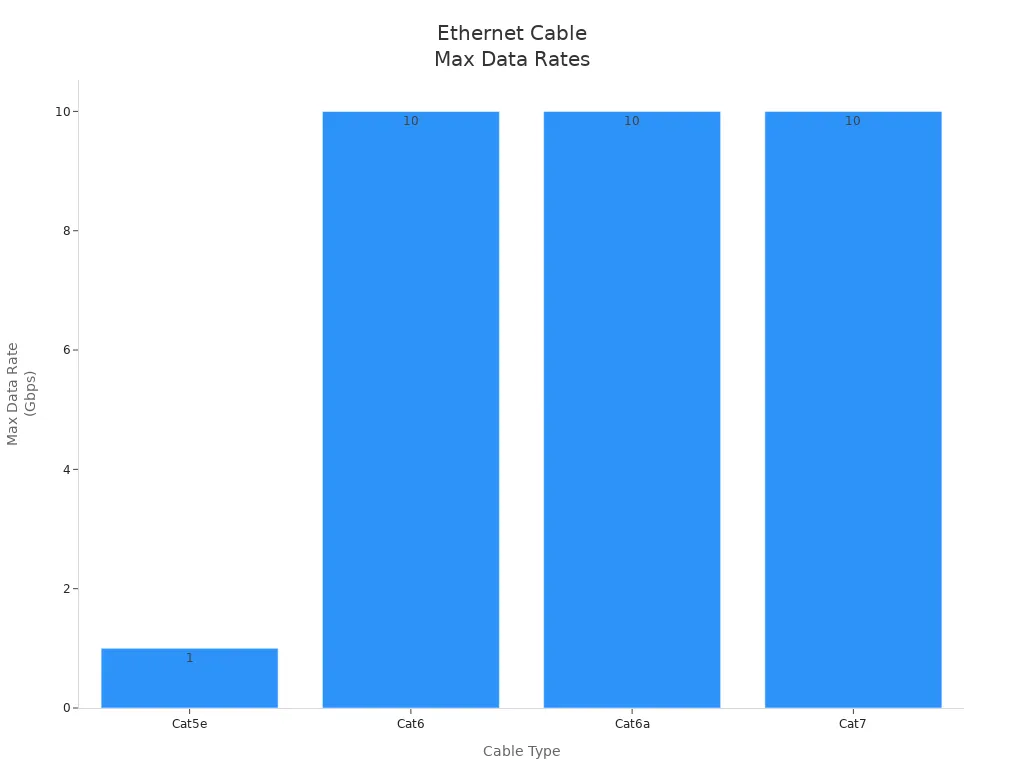
When you set up fiber optic internet, you want to get the fastest speeds possible. Ethernet cables help you do that. Not all Ethernet cables are the same. Some work better with fiber optic internet than others. If you use the right cable, you get smooth streaming, fast downloads, and no lag during games. Here’s a quick table to help you pick the best Ethernet cable for your home:
Ethernet Cable Type
Maximum Data Rate
Distance Limit
Cat5e
Up to 1 Gbps
100 meters
Cat6
Up to 10 Gbps
100 meters
Cat6a
Up to 10 Gbps
100 meters
Cat7
Up to 10 Gbps
100 meters
If you want the best performance, go with Cat6, Cat6a, or Cat7 cables. These cables handle high speeds and work well with fiber optic internet. Cat5e works too, but only up to 1 Gbps. For most homes, Cat6 or Cat6a gives you plenty of speed for gaming, streaming, and working online.
Tip: Always check the label on your cable. If it says Cat6 or higher, you’re good to go for fiber internet.
Connecting Devices
You need to connect your devices the right way to get the most from your fiber optic internet. Here’s how the main parts work together:
Converts light signals into digital data for your devices.
Fiber Optic Router or Gateway
Connects to the ONT and ensures maximum speed from your fiber connection.
End Devices
Use high-speed Ethernet cables for wired connectivity to the router for optimal performance.
You plug an Ethernet cable from the ONT into your router or gateway. This step brings the internet signal into your home network. Next, you use more Ethernet cables to connect your computers, gaming consoles, or smart TVs to the router. Wired connections give you the fastest and most stable speeds.
If you want Wi-Fi, your router sends the signal wirelessly to your phones and tablets. For devices that need steady speed, like gaming PCs or work computers, always use a wired Ethernet connection.
Note: Keep your cables neat and avoid sharp bends. This helps your internet stay fast and reliable.
Clamshell and Protection
Purpose of Clamshell
You might see a small plastic box where your fiber optic cable enters your home. That’s the clamshell. It looks simple, but it does a big job. The clamshell fiber optic cassette uses a two-piece plastic casing to shield your cable connections. This design keeps dust, dirt, and other stuff out. You want your internet to stay fast and reliable, right? The clamshell helps with that by protecting the spot where cables meet. If dust or moisture gets inside, your connection can slow down or even stop working.
Think of the clamshell as a helmet for your fiber cables. It keeps everything safe from weather, pets, and accidents. You don’t want rain or bugs messing with your internet. The clamshell blocks those problems. It also helps keep the cables from bending or breaking. When you have a strong clamshell in place, your fiber optic connection stays clean and strong.
Tip: Always check that your clamshell is closed tight. If you see gaps or cracks, ask your installer to fix it.
Installation Tips
You want your clamshell to do its job. Here’s how you can make sure it works well:
Pick the Right Spot: Place the clamshell where the cable enters your home. Make sure it’s easy to reach but not in the way.
Clean Before You Close: Wipe the cables and the inside of the clamshell before you snap it shut. Dirt can sneak in and cause trouble.
Snap It Securely: Listen for a click when you close the clamshell. That means it’s locked and protecting your cables.
Check for Damage: Look at the clamshell every few months. If you see cracks or loose parts, replace it.
Seal the Edges: Use weatherproof tape if you live in a rainy area. This keeps water out and your connection safe.
Here’s a quick table to help you remember:
Step
Why It Matters
Clean cables
Stops dust from causing issues
Snap shut
Keeps cables protected
Inspect regularly
Prevents future problems
If you follow these tips, your fiber optic internet will stay fast and trouble-free. A good clamshell means fewer repairs and better performance.
Residential Gateway and NIU
What Is a Residential Gateway
When you set up fiber optic internet, you might hear about a residential gateway. This device is the main center for your home network. It does the job of both a modem and a router in one box. You connect it right to the fiber optic line from your provider. The gateway then gives internet to all your devices, both with wires and with Wi-Fi.
You may wonder how a residential gateway is not the same as a regular router. Here’s a simple table to show the differences:
Feature
Residential Gateway
Standard Router
Device Type
Combines modem and router
Needs a separate modem
Connection to Internet
Connects directly to the service line
Connects using the WAN port
Local Network Management
Manages all local network traffic
Directs traffic within your home
Upgrade Flexibility
You can’t upgrade parts separately
You can upgrade modem or router alone
Common Usage
ISPs often provide this device
Used in custom setups
Most internet companies give you a residential gateway when you get fiber optic internet. This makes setup simple. You just plug it in and follow some easy steps. If you want more control or special features, you might pick your own router instead.
Tip: If you want better Wi-Fi or extra features, see if your gateway lets you turn off its Wi-Fi and use your own router.
Network Interface Unit (NIU)
The Network Interface Unit, or NIU, is another key part of your fiber optic setup. You usually find it where the fiber optic line comes into your house. The NIU works like a guard. It changes the broadband signal into signals your devices can use, like voice, video, and data. Here’s a quick look at what the NIU does:
Role of NIU
Description
Signal Transformation
Changes broadband signals into voice, audio, video, and data
Isolation
Keeps your home’s wiring safe from the network’s power
Protection Features
Adds safety features to protect your network from surges and faults
The NIU helps keep your connection safe and steady. It keeps your home’s wiring apart from the outside network. This means if there’s a problem with the provider, your devices stay safe.
You do not need to change the NIU yourself. The installer will set it up for you. If you ever have trouble with your fiber optic connection, the NIU is one of the first things a technician will check.
Note: A good NIU setup means fewer outages and better safety for your home network. If you see damage to the NIU, call your provider right away.
Optional Accessories
WiFi Extenders
Sometimes your WiFi does not reach every room. Some places, like bedrooms or basements, have weak internet. WiFi extenders help fix this problem. These devices take your router’s signal and make it stronger. They send the signal to spots with bad coverage. You get better WiFi in places that had no signal before.
WiFi extenders do more than just make the signal go farther. They help your network stay steady. You will not lose connection as much. Some extenders have Ethernet ports. You can plug in a game console or smart TV for a faster wired link. If you cannot put cables in your walls, powerline adapters are another choice. They use your home’s electrical wires to send internet.
Here is what WiFi extenders can do:
Make WiFi go farther
Make the signal stronger
Stop dropouts and lag
Get rid of dead zones
Give wired links with Ethernet ports
Tip: Put your WiFi extender halfway between your router and the weak spot. This helps the extender get a good signal and send it farther.
Surge Protectors
You want your fiber optic internet gear to last a long time. Power surges can hurt your router, ONT, and other things. Surge protectors keep your equipment safe from sudden power jumps. You plug your gear into a surge protector. It blocks extra power before it can hurt your devices.
Surge protectors are simple but very useful. They help you avoid expensive repairs and keep your internet working well. Some surge protectors have more outlets, USB ports, and even circuit breakers.
Here is a table to show what surge protectors give you:
Feature
Benefit
Extra outlets
Plug in more devices
USB ports
Charge phones and tablets
Circuit breaker
Adds extra safety
Note: Always use a surge protector for your fiber optic gear. You will keep your equipment safe and avoid losing internet.
You might think about installing fiber optic internet by yourself or hiring a professional. Both choices have good and bad sides. If you enjoy doing things yourself, self-installation can save money and time. You only pay for the materials, which usually cost $1 to $3 for each foot. You can work on your own schedule and finish faster. But if you make a mistake, your internet might not work well.
Professional installation costs more money. For small jobs, it might cost about $1,000. Big projects can cost over $10,000. It can take a few days or even weeks to finish. The good part is you get help from experts and better results. Most people who switch to fiber see faster speeds. About 77% of users say their internet works better. Fiber networks also have about 70% fewer problems than cable.
Here’s a simple table to compare:
Installation Type
Cost Range
Time Required
Reliability
Self-Installation
$1 to $3 per linear foot
Usually quicker
Risk of errors, lower reliability
Professional Installation
$1,000+ (small), $10,000+ (large)
Days to weeks
High reliability, expert setup
Tip: If you want less worry and fewer issues, professional installation is the safer pick.
Common Mistakes
Setting up fiber optic internet can be hard. Many people make mistakes that slow down their internet or cause trouble. Here are some common mistakes and how to avoid them:
Improper Cable Handling: Bending or pulling cables too much can break them. Be gentle and follow the directions.
Incorrect Cable Length Calculation: Guessing the length can cause problems. Measure carefully and add a little extra.
Poor Splicing Techniques: Bad splicing makes the signal weak. Use the right tools and follow the best steps.
Contaminated Connectors: Dirt on connectors blocks the signal. Clean them before plugging in.
Incorrect Connector Installation: If you put connectors on wrong, your internet will not work right. Read the instructions and check your work.
Ignoring Cable Polarity: Mixing up polarity messes up the signal. Keep track of cable ends and match them.
Overlooking Cable Pathway Planning: Running cables in risky places can hurt them. Plan your cable path and avoid sharp bends.
Inadequate Testing and Documentation: Skipping tests means you might miss problems. Test everything and write down your results.
Improper Environmental Conditions: Hot, wet, or dusty places can damage cables. Pick a safe spot for your setup.
Neglecting Cable Strain Relief: Without strain relief, cables can snap. Use clips or ties to keep cables safe.
🛠️ Note: Go slow and follow each step. Careful planning and clean work help your fiber optic internet stay fast and strong.
Performance Tips
Equipment Placement
You want your fiber optic internet to run fast and smooth. Where you put your equipment matters a lot. If you set your router in the right spot, you get better Wi-Fi in every room. Here are some easy tips to help you pick the best place:
Put your router in the center of your home. This helps the signal reach all areas.
Keep the router away from corners or behind big objects. Walls and furniture can block the signal.
Avoid placing your router near metal shelves, mirrors, or thick walls. These things slow down your internet.
Make sure your router sits on a table or shelf, not on the floor. Higher spots spread the signal better.
Keep your ONT and cables in a cool, dry spot. Heat and moisture can hurt your equipment.
Tip: If you notice slow speeds in some rooms, try moving your router or use a Wi-Fi extender. Small changes in placement can make a big difference.
Sometimes your fiber optic internet stops working or slows down. Don’t worry. You can fix many problems yourself. Try these steps if you run into trouble:
See if the website or service you want is online. Sometimes the problem isn’t your internet.
Make sure Wi-Fi is turned on for your device.
Double-check that you’re connected to the right Wi-Fi network.
🛠️ Note: If you still have problems after these steps, call your internet provider. They can help you find and fix bigger issues.
You can keep your fiber optic internet running strong by placing your equipment wisely and knowing how to troubleshoot common problems. Small changes and quick checks help you enjoy fast, reliable internet every day.
Quick tip: Wired connections work best for gaming and streaming. Regularly monitor your network and adjust settings as needed.
FAQ
What does an ONT do in my fiber optic setup?
Your ONT changes light signals from the fiber cable into data your devices can use. It acts like a translator for your internet connection.
Can I use my old router with fiber optic internet?
You can use your old router if it supports high speeds. For the best results, pick a router with gigabit ports and Wi-Fi 6 or newer.
Do I need Ethernet cables for fiber optic internet?
Yes, you need Ethernet cables to connect your router to devices like computers or smart TVs. Wired connections give you faster and more stable internet.
How do I protect my fiber optic cables outside?
Use a clamshell or weatherproof box where the cable enters your home. This keeps out rain, dirt, and animals. Check the box often for damage.
What should I do if my fiber internet stops working?
First, check all cables and connections. Restart your router and ONT. If you still have problems, call your internet provider for help.